
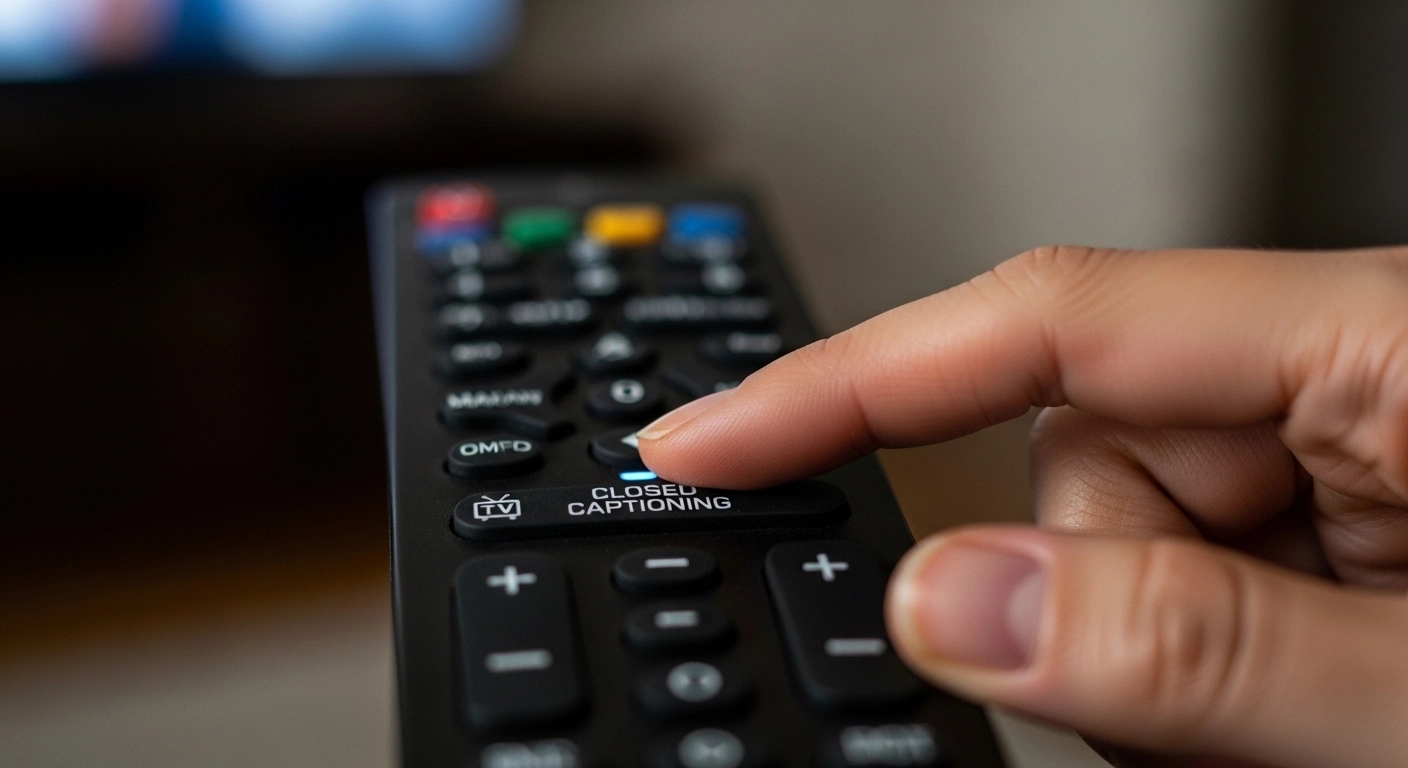
Turning off closed caption on Roku means disabling the on-screen text that displays spoken dialogue and audio descriptions while you’re watching TV shows, movies, or streaming apps. You can turn off subtitles directly from the Roku remote using the Star () button*, through the Roku Settings menu under Accessibility > Captions mode, or inside individual streaming apps like Netflix, Hulu, or Prime Video. The process takes less than a minute and works across most Roku devices, Roku TVs, and streaming sticks.
If captions are suddenly appearing on your screen and you’re not sure why, don’t worry — you’re in the right place. 💜 This guide walks you through every possible method for turning off closed caption on Roku, fixing common subtitle issues, and customizing your Roku caption settings step-by-step.
Why Are Closed Captions Showing on My Roku?
Before we jump into turning off closed caption on Roku, let’s quickly understand why they might be appearing:
-
You accidentally pressed the Star () button* on your Roku remote
-
Captions were enabled in Roku Accessibility settings
-
Subtitles are turned on inside a streaming app
-
A software update reset your caption preferences
-
Your TV (not Roku) has captions enabled
Closed captions (CC) are designed to help viewers who are deaf or hard of hearing. They display dialogue and sometimes describe sounds like [door slams] or [music playing]. But if you don’t need them, they can feel distracting.
Now let’s fix it.
How to Turn Off Closed Caption on Roku Using the Remote (Fastest Method)
This is the quickest and most common way to disable captions.
Step-by-Step:
-
Start playing a movie or TV show
-
Press the Star (*) button on your Roku remote
-
A side menu will appear
-
Select Closed Captioning
-
Choose Off
That’s it. 🎉
If captions were enabled temporarily, this turns them off instantly.
How to Turn Off Closed Caption on Roku From Settings Menu
If captions keep coming back, you may need to disable them in system settings.
Here’s how:
-
Press the Home button on your Roku remote
-
Scroll to Settings
-
Select Accessibility (or Captions on older models)
-
Choose Captions mode
-
Select Off
This ensures captions stay off across all apps.
Turning Off Closed Caption on Roku TV (Built-In Roku TVs)
If you’re using a Roku TV (TCL, Hisense, Onn, etc.), the process is almost identical:
-
Press Home
-
Go to Settings
-
Select Accessibility
-
Click Captions mode
-
Set to Off
If captions still appear, check your TV’s native accessibility settings as well.
How to Turn Off Subtitles in Netflix on Roku
Sometimes subtitles are enabled inside Netflix specifically.
To disable them:
-
Play a show in Netflix
-
Press the Down arrow on your remote
-
Select Audio & Subtitles
-
Under Subtitles, choose Off
Netflix settings override Roku system settings in some cases.
How to Turn Off Hulu Subtitles on Roku
-
Play a show in Hulu
-
Press Up or Down to open playback menu
-
Select Settings
-
Choose Subtitles
-
Turn Off
How to Turn Off Amazon Prime Video Captions on Roku
-
Start streaming on Prime Video
-
Press the Down arrow
-
Select Subtitles & Audio
-
Choose Off
Each streaming app may have its own caption controls.
How to Turn Off Closed Caption on Roku During Live TV
If you’re watching live TV through an antenna:
-
Press the Star (*) button
-
Select Closed Captioning
-
Choose Off
If captions persist, check your TV broadcast settings.
Why Closed Captions Keep Turning Back On
This is a common complaint.
Possible causes:
-
App-level subtitle settings
-
Roku software update reset
-
HDMI-CEC settings
-
TV’s own caption system
-
Accessibility shortcut pressed accidentally
If captions reappear, check both Roku system settings and the streaming app settings.
How to Customize Caption Appearance on Roku
Even if you’re turning off closed caption on Roku, you might want to know this:
You can customize:
-
Text size
-
Font
-
Background color
-
Text color
-
Opacity
Go to:
Settings > Accessibility > Caption style
This is helpful if someone in your home needs captions occasionally.
Turning Off Closed Caption on Roku Without a Remote
Lost your remote? Don’t panic.
You can use:
-
Roku mobile app (iOS & Android)
-
Go to Devices
-
Select your Roku
-
Use the virtual remote
-
Follow the same steps: Settings > Accessibility > Captions Off
The Roku app works exactly like a physical remote.
How to Disable Captions Using Roku Mobile App
-
Open the Roku app
-
Connect to your device
-
Tap Remote
-
Press Home
-
Navigate to Settings > Accessibility
-
Turn Captions mode Off
Easy and remote-free.
Difference Between Closed Captions and Subtitles on Roku
Understanding the difference helps prevent confusion.
| Closed Captions | Subtitles |
| Include sound effects | Dialogue only |
| For accessibility | For language translation |
| System controlled | Often app controlled |
Turning off closed caption on Roku may not turn off app-based subtitles.
How to Reset Roku If Captions Won’t Turn Off
If nothing works:
-
Go to Settings
-
Select System
-
Choose Advanced System Settings
-
Click Factory Reset
⚠️ Warning: This erases everything.
Only do this if captions are stuck permanently.
Troubleshooting: Captions Won’t Turn Off on Roku
Try these fixes:
-
Restart Roku: Settings > System > Power > Restart
-
Check app subtitle settings
-
Update Roku software
-
Replace remote batteries
-
Unplug Roku for 30 seconds
Most issues resolve with a restart.
Turning Off Closed Caption on Roku Stick vs Roku Ultra
Good news: The process is identical.
Whether you have:
-
Roku Streaming Stick
-
Roku Express
-
Roku Ultra
-
Roku Premiere
-
Roku TV
The steps remain the same.
How to Turn Off Closed Caption on Roku During YouTube
YouTube handles captions differently.
-
Play a video
-
Press Up
-
Select CC icon
-
Turn captions Off
YouTube captions are app-controlled.
Voice Command to Turn Off Captions on Roku
If you have Roku Voice Remote:
Try saying:
Turn off captions.
Or
Closed captions off.
This works on compatible Roku models.
Accessibility Settings and Closed Caption Options
Roku accessibility includes:
-
Captions mode
-
Audio guide
-
Screen reader
-
Caption style customization
You can manage everything from:
Settings > Accessibility
Does Turning Off Closed Caption on Roku Affect All Apps?
Usually yes — but not always.
Some apps override system caption settings.
Always check both:
-
Roku system settings
-
App-level subtitle settings
How to Turn Closed Caption Back On (If Needed Later)
To re-enable:
-
Press Star (*)
-
Select Closed Captioning
-
Choose Always On
Or go to:
Settings > Accessibility > Captions mode > Always On
FAQ: Turning Off Closed Caption on Roku
1. How do I permanently turn off closed captions on Roku?
Go to Settings > Accessibility > Captions mode > Off.
2. Why won’t captions turn off on Roku?
Check app subtitle settings and restart your device.
3. Is there a shortcut to disable captions?
Yes, press the Star (*) button while streaming.
4. Do captions turn off automatically?
No, they stay in your last selected mode.
5. Can I control captions from my phone?
Yes, use the Roku mobile app.
6. Why are subtitles still on Netflix after turning off Roku captions?
Netflix subtitles must be disabled inside the app.
7. Does factory reset fix stuck captions?
Yes, but it removes all apps and settings.
8. Where is caption style located?
Settings > Accessibility > Caption Style.
Final Thoughts: Turning Off Closed Caption on Roku Made Easy
Turning off closed caption on Roku is simple once you know where to look. Whether you’re using the remote shortcut, system settings, or app-specific controls, the fix usually takes less than a minute.
If captions suddenly appear, remember:
✔ Check the Star (*) button
✔ Check Roku Accessibility settings
✔ Check streaming app subtitle settings
And if all else fails, a quick restart usually solves the problem.
Now you can enjoy your movie night without distracting text on the screen. 🍿✨
If this guide helped you, bookmark it for later — you never know when captions might pop back on again.
